How to 3D print a keyguard for an iPad or Android tablet
You can make a keyguard cut to the exact buttons of any AAC app page, then print it at home or at a library. All you need is a screenshot and the tablet's model name.
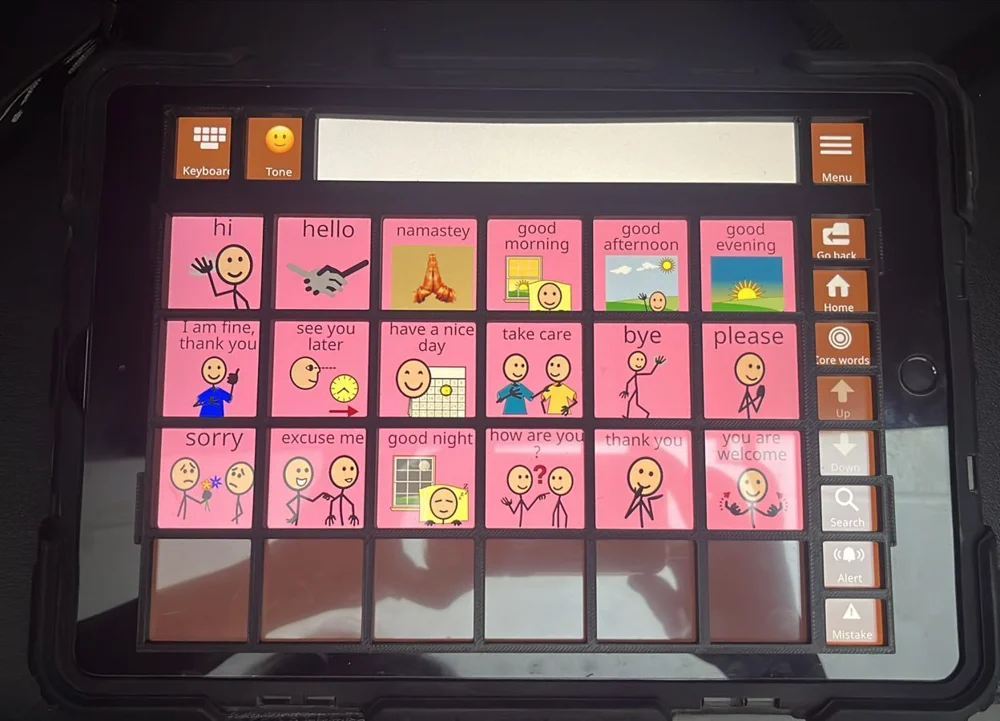
Before you start
- Settle the page layout. A keyguard fits one grid. If the person's team plans to change the grid size soon, make the change first.
- Know the tablet model. On an iPad, open Settings, then General, then About. On an Android tablet, open Settings, then About tablet.
- Decide about the case. If the tablet lives in a protective case, the keyguard can slide under its lip. Without a case, it sits on the screen and is held with tape.
If you are new to keyguards, what an AAC keyguard is and when it helps covers the basics.
Take a screenshot on the tablet
Open the AAC app on the page the keyguard is for, and take the screenshot on the tablet itself. A screenshot from a phone, a computer or a website will not match the tablet's screen.
- iPad with Face ID: press the top button and either volume button together.
- iPad with a Home button: press the top button and the Home button together.
- Most Android tablets: press the power button and volume down together.
Send the screenshot to the computer you will use, or open Easy Keyguard on the tablet itself. Close any pop-ups in the app before you take it, so the buttons are not hidden.
Upload it and pick the tablet
Drop the screenshot into Easy Keyguard. It finds the buttons automatically and suggests tablets whose screen matches the screenshot's shape. Pick yours from the suggestions, or search all 315 tablets.
If your tablet is not listed, choose to enter it manually. You will need the screen's width and height in millimetres and its pixel density (PPI), from the tablet's spec sheet.
Easy Keyguard does not keep your screenshot after it has found the buttons.
Choose how it fits and adjust openings
How it fits sets how big the plate is:
- Screen fit: the plate matches the screen, and small tabs slide under the case’s edge. Use it with a case whose edge comes within about 3 mm of the screen.
- Whole tablet: the plate covers the full front of the tablet. Use it when there is no case.
- Custom case: the plate fills your case’s opening. Pick a case for your tablet, or set your own: how far the case covers past the screen, or the opening size you measured. The plate is made to exactly those sizes.
Then switch to Edit to change the openings. You can tap an opening to cover it, select several and combine them into one, or drag on the plate to add an opening. Under Spacing and thickness, the bar width sets the gap between openings, and the height sets how thick the plate is. A thicker plate gives a stronger edge to rest a hand on.
Check the preview with See through turned on. Every button the person uses should have its own opening.
Download and print
Download your keyguard. The download includes two versions of the plate and a print guide:
- Slide-in: has thin tabs that slide under the lip of a protective case. The case needs a lip of about 1 mm.
- Plain: a flat plate with no tabs, for use without a case.
These settings work on most home and library printers:
| Setting | Value |
|---|---|
| Material | PLA (recommended) or PETG |
| Layer height | 0.2 mm |
| Walls (perimeters) | 3 or more, for clean opening edges |
| Infill | 20 to 30% |
| Supports | None |
| Orientation | Flat on the bed, openings facing up |
PETG bends a little before it breaks, which helps if the keyguard will be dropped or flexed often. Choose a colour that stands out from the screen so the person can see the openings, unless they find bright colours distracting.
No 3D printer?
Many public libraries, schools, school districts, colleges and makerspaces have 3D printers you can use, often at little or no cost. Bring the downloaded file on a USB stick or email it to them. A local print shop can also print it.
Fit it to the tablet
Open the AAC app on the page you used for the screenshot before you fit the keyguard.
- Slide-in: angle the tab side in under the case lip, then press the opposite edge down flat.
- Plain: cut micro-suction or gel tape to fit the underside of the plate, press it on, then press the plate onto the screen. Lift one edge gently to take it off.
Check that every opening lines up with its button, and press each button through the keyguard once.
Fixing a poor fit
| Problem | Likely cause and fix |
|---|---|
| All openings are shifted the same way | The tablet model is wrong. Check it in Settings and make the keyguard again with the right model. |
| Openings drift further off towards one edge | The screenshot was not taken on this tablet, or the app's display zoom is different. Take a fresh screenshot on the tablet. |
| The plate will not go under the case lip | Use the Plain version with tape, or choose Custom coverage and make the border smaller. |
| The plate is loose in the case | Choose Custom coverage and make the border slightly bigger, or add a strip of tape. |
| Fingers catch on the openings | Make the plate thinner, or widen small openings by combining them. |
| The plate cracked | Reprint in PETG, or add a wall and raise the infill. |
When the app's layout changes, take a new screenshot and print a new keyguard.
Ready to make one? Free for personal use, with no account. Therapists, schools and organisations can make keyguards for the people they support, as long as no one is charged for them.
Make a keyguardCheck the fit and the person's comfort before regular use, and ask their speech-language pathologist or occupational therapist if you are unsure whether a keyguard suits them.